How to download a GPX file from your watch and apps
A GPX file is a recording of your route. Most apps let you download it in two clicks — instructions for the most popular ones are below. And if you don't have a file, just enter the places in order.
Create your poster →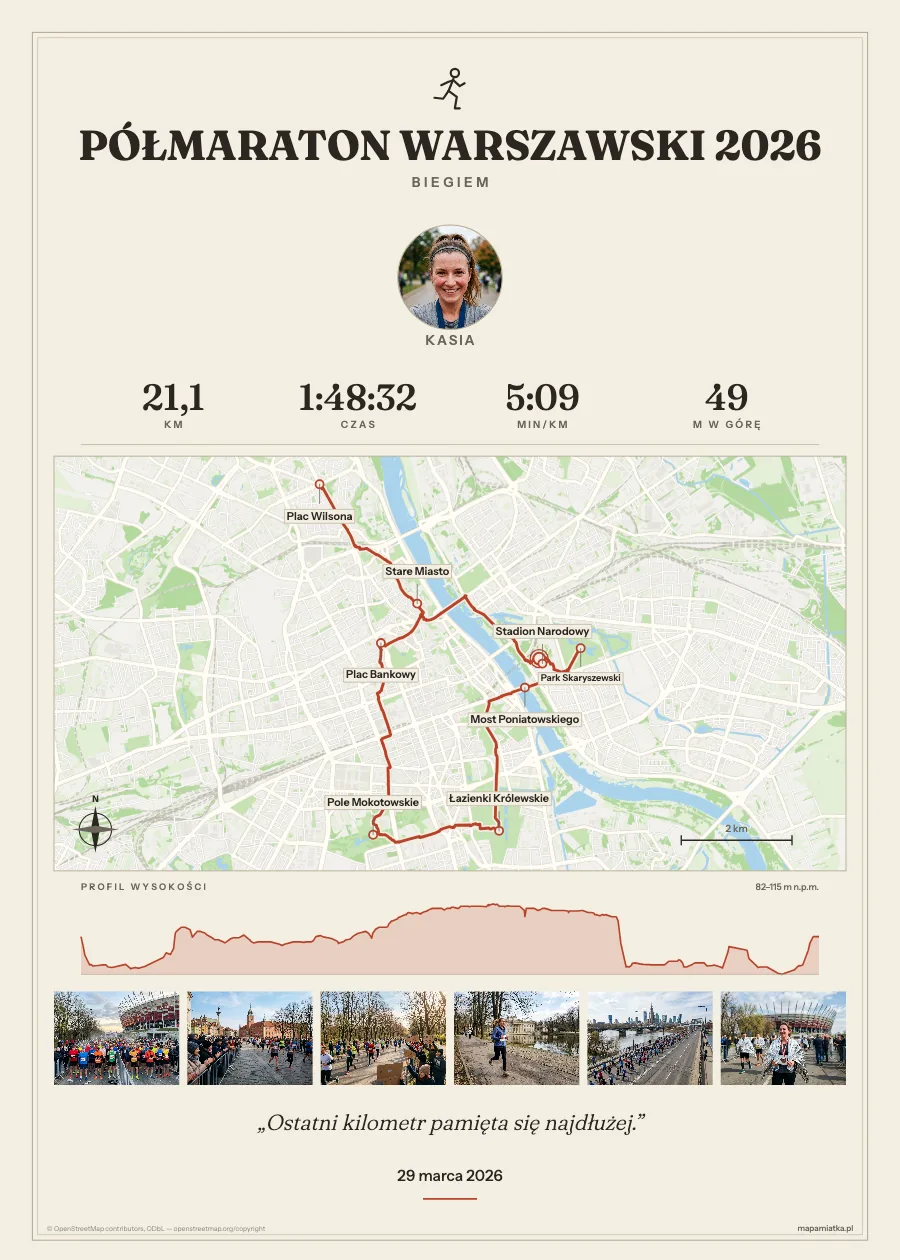
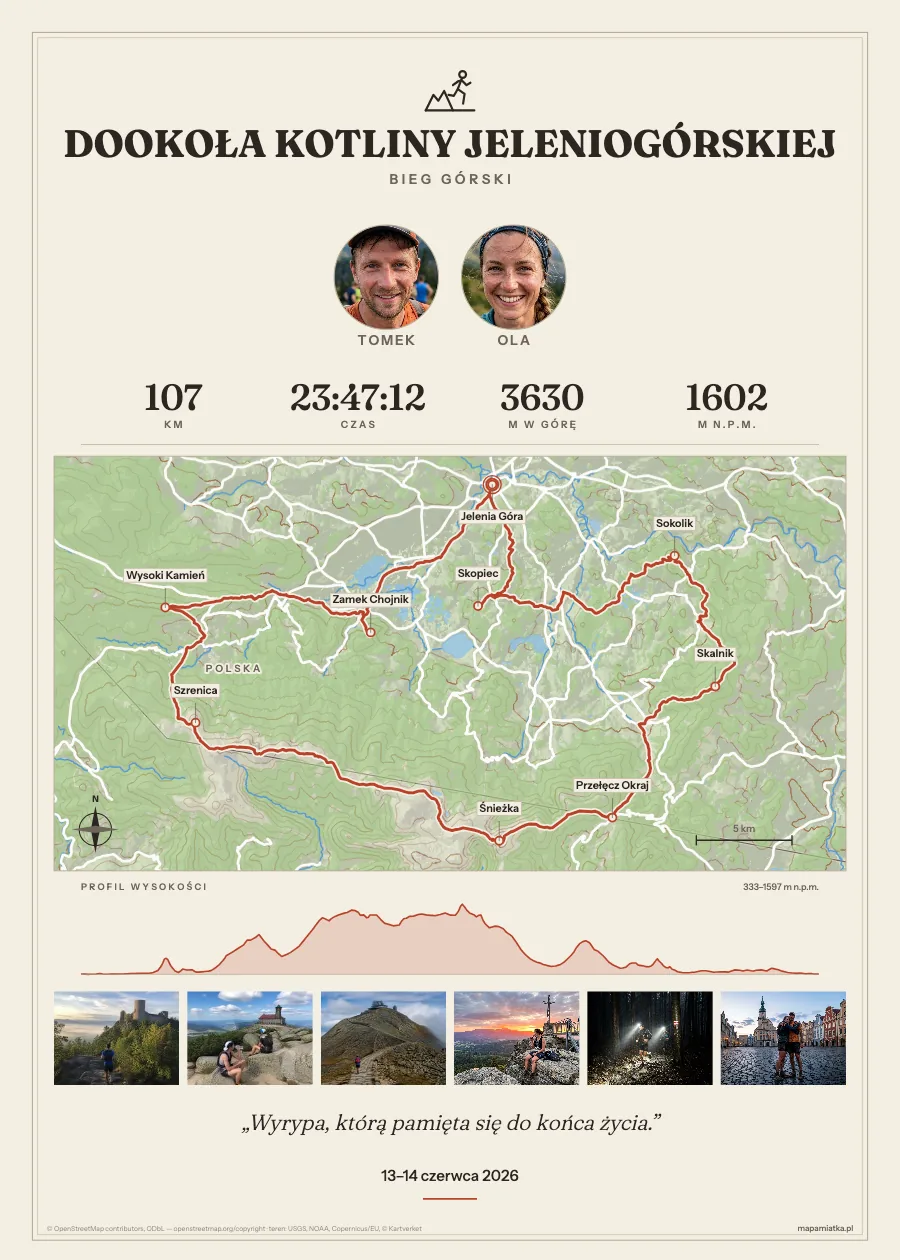
What your poster will include
- GPX — the most common format, every app exports it
- FIT — a watch file from Garmin, Coros, Suunto (works too)
- TCX and KML — older formats, we accept them too
- ZIP with your Strava account export — pick the activity from a list
How it works — three steps
- Download the file from your app
Instructions for Strava, Garmin, Polar, Suunto, Coros, Komoot and Apple Watch are below.
- Upload it in the creator
Drag the file in or pick it on your phone. The route draws itself and the kilometres count themselves.
- Add photos and download the poster
The preview is free — you only pay when you like the poster.
Questions
Strava — how to download a GPX file?
On a computer, open the activity on strava.com, click the “…” menu (three dots) on the left and choose “Export GPX”. The phone app has no such option — open Strava in a browser in desktop mode.
Garmin Connect — how to download a GPX file?
On connect.garmin.com open the activity, click the gear icon in the top right corner and choose “Export to GPX”. “Export Original” gives a ZIP with a FIT file — unzip it and upload the .fit file.
Polar Flow — how to download a GPX file?
On flow.polar.com open the training session, choose “Export session” and then the GPX format.
Suunto — how to download a GPX file?
In the Suunto app open the workout, open the menu (three dots) and choose to export or share the GPX file. If Suunto syncs with Strava, you can also download the file from Strava.
Coros — how to download a GPX file?
In the Coros app open the activity, tap the share icon and choose to export the data as GPX or FIT.
Komoot — how to download a GPX file?
On komoot.com open the route or tour, click the “…” menu and choose to download the GPX file.
Apple Watch — how to download a GPX file?
On iPhone: Health app → your photo or initials → Export All Health Data. Open the ZIP in the Files app → workout-routes folder → pick the GPX file with the date of your workout. That is where Apple Watch routes are stored.
I don't have any file — what now?
Enter the places of your route in order — we route it along real roads and count the kilometres. For example: Kraków, Zakopane, Morskie Oko.
The button in my app has a different name.
Apps rename things between versions. Look for a similar option: “Export”, “Download”, “Share file” or “GPX”. If you get stuck, write to [email protected] — we'll help.
Ready in a few minutes
Live preview, no account needed. You only pay once you like your poster.
Create your poster →